- Add subdomain name (optional)
 Then click “Edit” button on the bottom and change the Subdomain field to the name of your wish. Please note that only small letters are allowed, this means no spaces. For example:
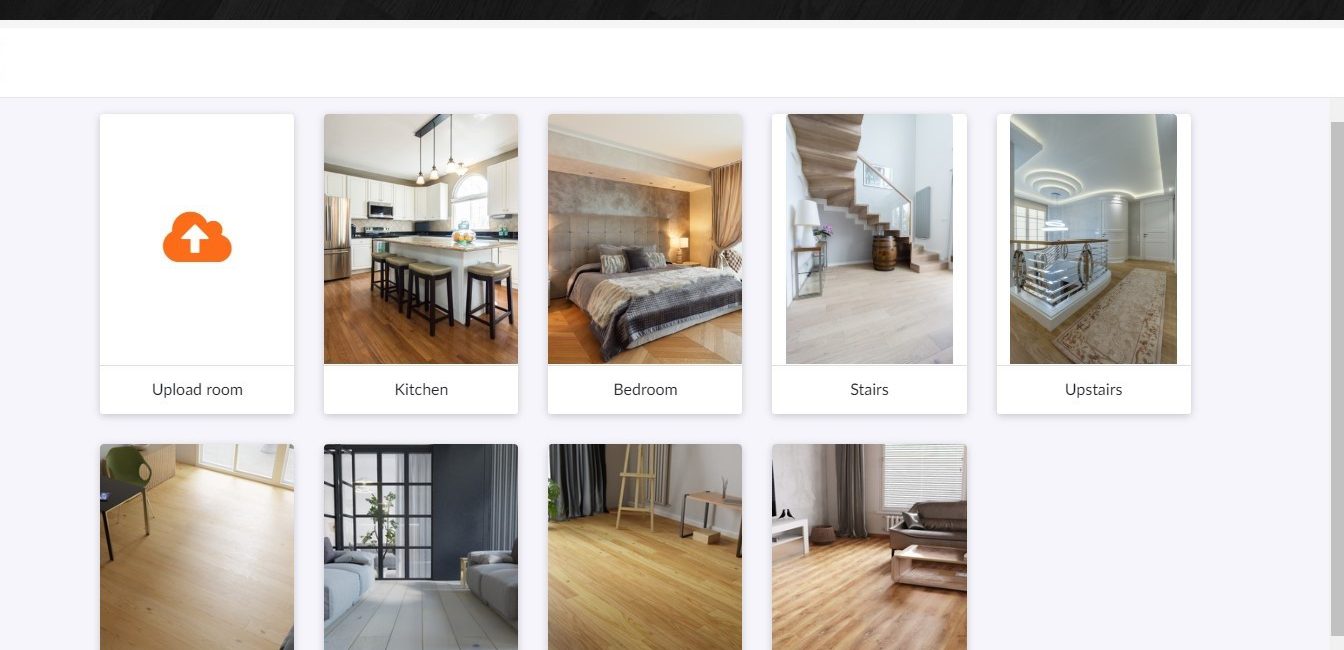
 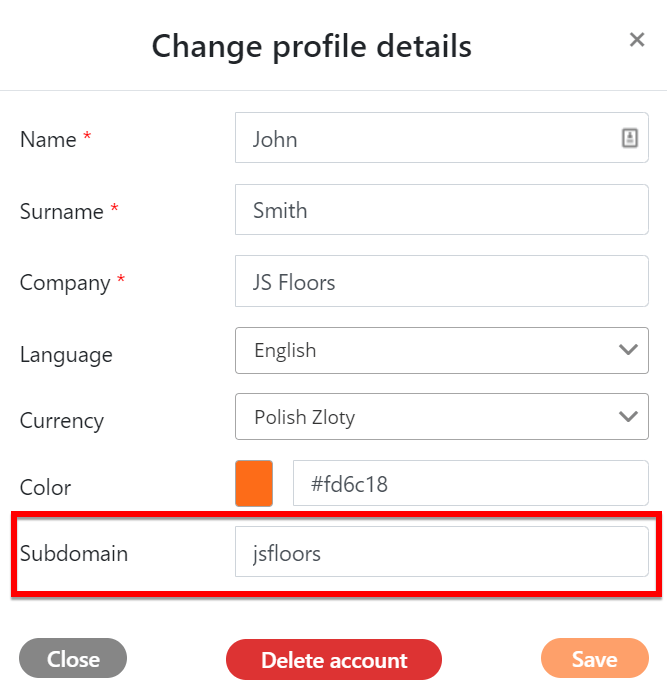 This way our Floori Lite visualizer will be at https://jsfloors.floori.io/ 2. Find Floori Lite visualizera URL address If you’ve skipped step 1, first log into your account at https://portal.floori.io/login. Now that we are surely logged in the portal, there are 2 ways to establish the visualizer URL address. One is to click “Launch Floori Lite” in the top right corner and copy the address from the browser. Second is to go to “Floori Lite” tab on the left side menu and click “Click here!” next to Floori Lite URL field with the right mouse button and select Copy Link Address.
  3. Embed the code The copied link link (example below) should be added to the HTML code (example below). All HTML code should be added to the source code of the web page where you want to add the Floori Lite visualizer. An example of the Floori Lite visualizer address/iframe:
https://demo.floori.ioor, if we added the subdomain:
https://demo.floori.ioSample iframe HTML code to add to the page:
<iframe src="https://demo.floori.io" style=”width:100%;height:82vh;border:none;”></iframe>or, if we added the subdomain:
<iframe src="https://kowalski.floori.io/" style=”width:100%;height:82vh;border:none;"></iframe>In addition, it is also worth adjusting the style (e.g. frame, background color, etc.) so that the plug-in fits your website or e-commerce store.
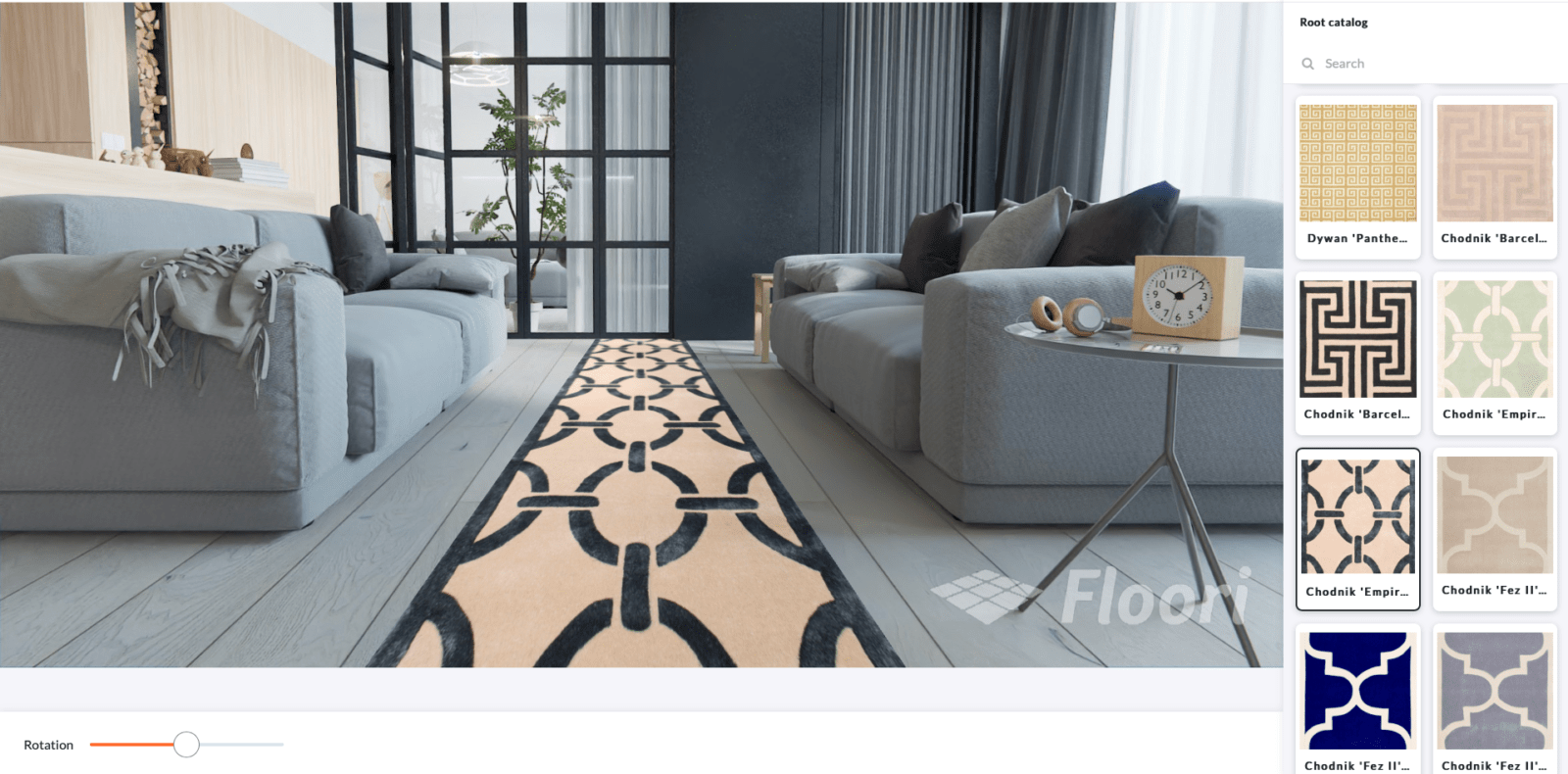
And just like that, you’re done! The Floori flooring visualizer will render on your website.
It is also a good practice to place a CTA button under each of your products on your website so that when the customer clicks this button, it will take you directly to the product in the Floori Lite visualizer.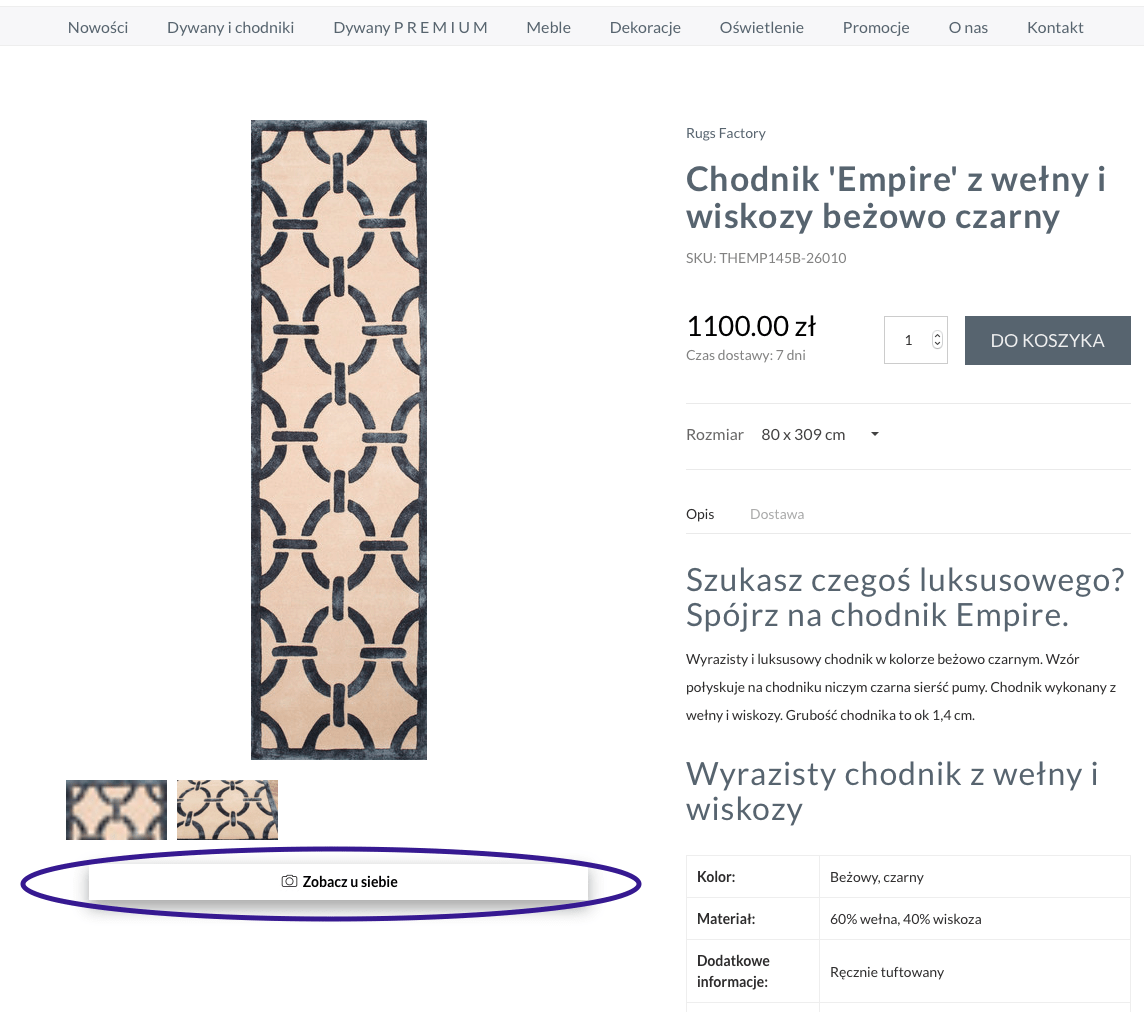 After entering a new product on the Floori Portal, you can find a link that you can use to link to this CTA button. This link will direct customers on your site to that specific product within the Floori visualizer.
Questions, concerns? We are here to help 🙂
Reach us: support@floori.io

Floori Ecosystem Part III: How the Floori Visualizer Enables Manufacturers and Distributors of Engineered Wood, Laminate, LVT/SPC, Parquet, and Vinyl to Drive Customer Confidence and Conversions
Part 3 of 3 — The Floori Ecosystem for Flooring Industry This article is part of our deep-dive into the Floori Ecosystem, which combines three parts that work
Floori Ecosystem Part II: How the Floori Portal Empowers Manufacturers and Distributors of Engineered Wood, Laminate, LVT/SPC, Parquet, and Vinyl to Control Catalogs, Branding, and Product Access
Part 2 of 3 — The Floori Ecosystem for Flooring Industry This article is part of our deep-dive into the Floori Ecosystem, which combines three parts that work
Floori Ecosystem Part I: How the Floori Scanner Helps Manufacturers and Distributors of Engineered Wood, Laminate, LVT/SPC, Parquet, and Vinyl Create True-to-Scale Digital Assets
Part 1 of 3 — The Floori Ecosystem for Flooring Industry This article is part of our deep-dive into the Floori Ecosystem, which combines three parts that work
Why Rug Brands Love Our WooCommerce Plugin (And Why You Will Too)
By Nagham, Floori’s Sales Manager In this article, Floori Sales Manager Nagham shares how the Floori WooCommerce Plugin is revolutionizing rug e-commerce. From real-time product

Introducing the Floori WooCommerce Plugin: Effortless Data Sync & Sales Optimization
We Listened. We Improved. Now, Managing Your WooCommerce Store and Floori Portal Is Easier Than Ever. E-commerce businesses rely on speed, accuracy, and efficiency to remain competitive. However, many

How These Two Companies Are Rocking It With The Best Performing Epoxy Ads (+ How You Can Do It Too)
In today’s digital age, social media has become an essential platform for businesses to reach and engage with their target audience. One of the critical factors in achieving success